Using Nginx with SSL
Learn how to set up Light Store behind Nginx with SSL certificates.
Overview
This guide will explain how to set up Light Store behind an Nginx reverse proxy with HTTPS using Let's Encrypt certificates managed by Certbot.
This guide does not apply for you if you've utilised the automatic installation script, since that already uses Caddy as the webserver. This guide only applies for pure Docker installs & manual installs.
What this guide covers
We'll configure Nginx to:
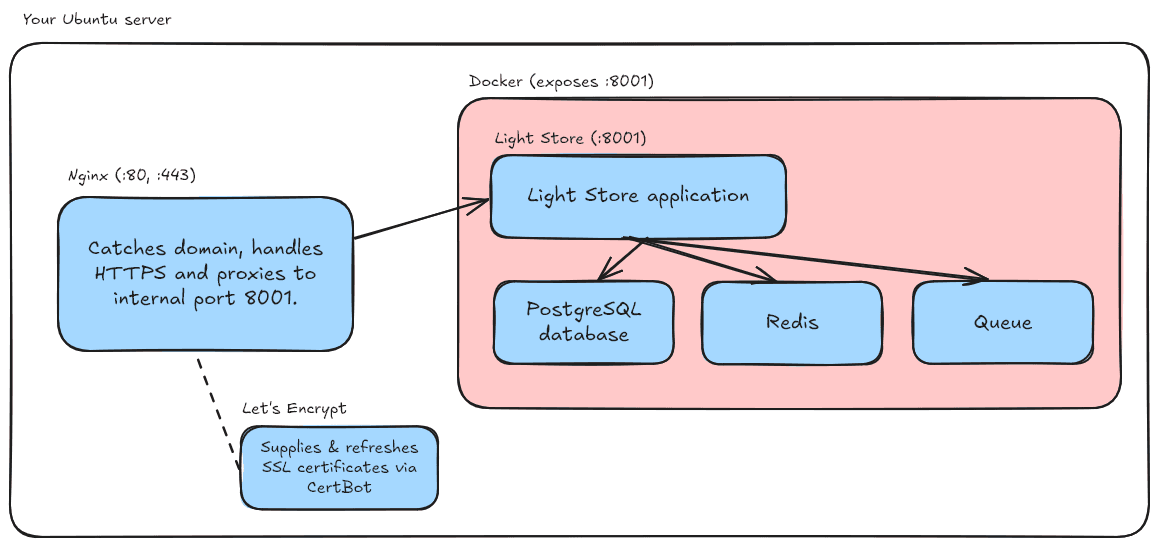
- Act as a reverse proxy, forwarding requests to Light Store running on port 8001
- Set up HTTPS using SSL certificates from Let's Encrypt
- Automatically redirect HTTP traffic to HTTPS
The whole set up can be described using this dependency graph:
DNS Configuration
Before setting up Nginx and SSL, you need to configure your domain's DNS settings to point to your server. This involves creating an A record:
- Log in to your domain registrar's control panel (e.g., Cloudflare, GoDaddy, Namecheap)
- Find the DNS management section
- Create a new A record:
- Type: A
- Name: @ (for root domain) or subdomain (e.g., 'store' for store.yourdomain.com)
- Value: Your server's IP address
- TTL: Automatic or 3600 (1 hour)
DNS Propagation
After setting up your A record, it may take up to 48 hours for DNS changes to propagate globally, though it usually happens within a few hours. You can check propagation status using tools like dnschecker.org.
Additional Requirements
Make sure you have a working installation of Light Store running on port 8001 (assuming you've followed the Docker installation guide)
Installing Nginx and Certbot
First, update your package list and install Nginx:
sudo apt update
sudo apt install nginx
Next, install Certbot and its Nginx plugin:
sudo apt install certbot python3-certbot-nginxSetting up Nginx Configuration
- Create a new Nginx configuration file:
sudo nano /etc/nginx/sites-available/store- Add the following configuration (replace
your.domain.comwith your domain):
server {
    server_name your.domain.com;
	client_max_body_size 100M;

    # Proxy to port 8001 instead of serving files
    location / {
        proxy_pass http://localhost:8001;
        # These proxy headers are important, since without them,
		# requests from the site will attempt to localhost.
		# Make sure you include them in your configuration.
        proxy_set_header Host $host;
        proxy_set_header X-Real-IP $remote_addr;
        proxy_set_header X-Forwarded-For $proxy_add_x_forwarded_for;
        proxy_set_header X-Forwarded-Proto $scheme;
        proxy_set_header X-Forwarded-Host $host;
        proxy_buffer_size 128k;
        proxy_buffers 4 256k;
        proxy_busy_buffers_size 256k;
    }
}- Enable the site by creating a symbolic link:
sudo ln -s /etc/nginx/sites-available/store /etc/nginx/sites-enabled/- Test the Nginx configuration:
sudo nginx -t- If the test is successful, reload Nginx:
sudo systemctl reload nginxSetting up SSL with Certbot
- Run Certbot with the Nginx plugin:
sudo certbot --nginx- Follow the prompts:
- Enter your email address
- Agree to the terms of service
- Choose whether to share your email
- Select your domain when prompted
- Choose whether to redirect HTTP traffic to HTTPS (recommended)
Certbot will automatically modify your Nginx configuration to include SSL settings and create a redirect from HTTP to HTTPS.
Final Configuration
Your final Nginx configuration should look similar to this:
The code shown below is automatically generated. Do not copy/paste it.
server {
    server_name your.domain.com;
	client_max_body_size 100M;

    location / {
        proxy_pass http://localhost:8001;
        proxy_set_header Host $host;
        proxy_set_header X-Real-IP $remote_addr;
        proxy_set_header X-Forwarded-For $proxy_add_x_forwarded_for;
        proxy_set_header X-Forwarded-Proto $scheme;
        proxy_set_header X-Forwarded-Host $host;
        proxy_buffer_size 128k;
        proxy_buffers 4 256k;
        proxy_busy_buffers_size 256k;
    }

    listen [::]:443 ssl; # managed by Certbot
    listen 443 ssl; # managed by Certbot
    ssl_certificate /etc/letsencrypt/live/your.domain.com/fullchain.pem; # managed by Certbot
    ssl_certificate_key /etc/letsencrypt/live/your.domain.com/privkey.pem; # managed by Certbot
    include /etc/letsencrypt/options-ssl-nginx.conf; # managed by Certbot
    ssl_dhparam /etc/letsencrypt/ssl-dhparams.pem; # managed by Certbot
}

# HTTP to HTTPS redirect
server {
    if ($host = your.domain.com) {
        return 301 https://$host$request_uri;
    } # managed by Certbot

    server_name your.domain.com;

    listen 80;
    listen [::]:80;
    return 404; # managed by Certbot
}
Certificate Renewal
Certbot automatically installs a renewal service that will try to renew your certificates when they're close to expiring. You can test the renewal process with:
sudo certbot renew --dry-runYour certificates will automatically renew when necessary.
Verifying the Setup
- Visit your domain using HTTPS (e.g.,
https://your.domain.com) - Verify that HTTP redirects to HTTPS
- Check that your Light Store installation is accessible and functioning properly
- Test that SSL is working by checking for the padlock icon in your browser